GITLAB CI/CD: BUILD AND PUSH DOCKER TO AWS ECR
FEB 17, 2025•15 MIN READ
Share:
After setting up our development tools, the next crucial step is configuring our CI/CD pipeline. In this post, we'll use several AWS services:
Amazon ECR (Elastic Container Registry)
- Fully managed container registry
- Secure storage for Docker images
- Integrates seamlessly with IAM
IAM (Identity and Access Management)
- Manages EC2 permissions to ECR
- Secures registry access
- Follows principle of least privilege
I'll share how to securely manage AWS credentials in GitLab and set up Amazon Elastic Container Registry (ECR) for our Docker images.
Prerequisites
- AWS Account with EC2 instance running
- EC2 instance with AWS CLI installed
- GitLab Runner installed and registered
- Docker installed on EC2
- Basic understanding of Docker, Docker Compose, GitLab CI/CD
Step-by-Step Guide
1. Updating volumes for GitLab Runner
Before we can use Docker commands in our pipeline, we need to update our GitLab Runner configuration:
sudo vi /etc/gitlab-runner/config.tomlAdd the volumes configuration:
[[runners]]
  executor = "docker"
  [runners.docker]
volumes = ["/var/run/docker.sock:/var/run/docker.sock"]Restart GitLab Runner:
sudo systemctl restart gitlab-runner2. Creating IAM Role for EC2
- Go to IAM Console > Roles > Create role
- Select AWS service as trusted entity
- Select EC2 as use case
- Add AmazonEC2ContainerRegistryFullAccess as permissions
- Name EC2ECRAccess
- Review and create

3. Attaching IAM Role to EC2
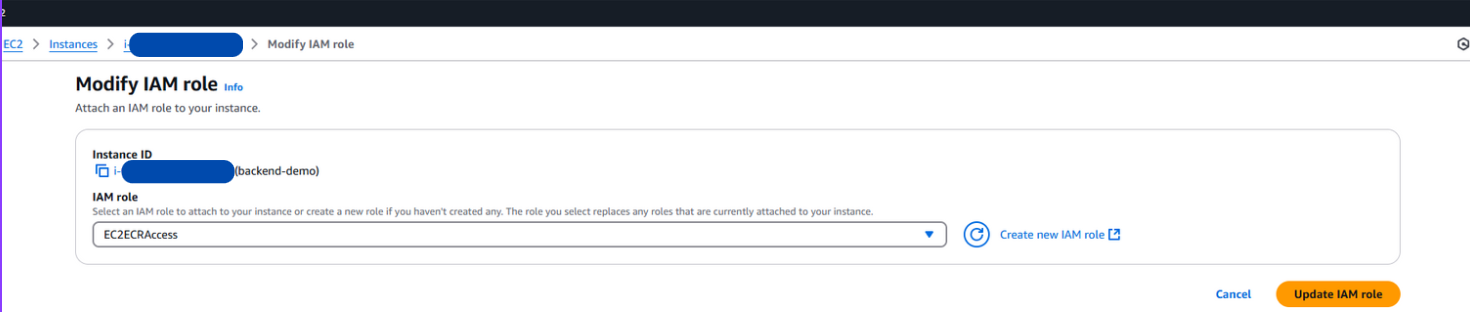
4. 🔐 Setting Up GitLab CI/CD Variables
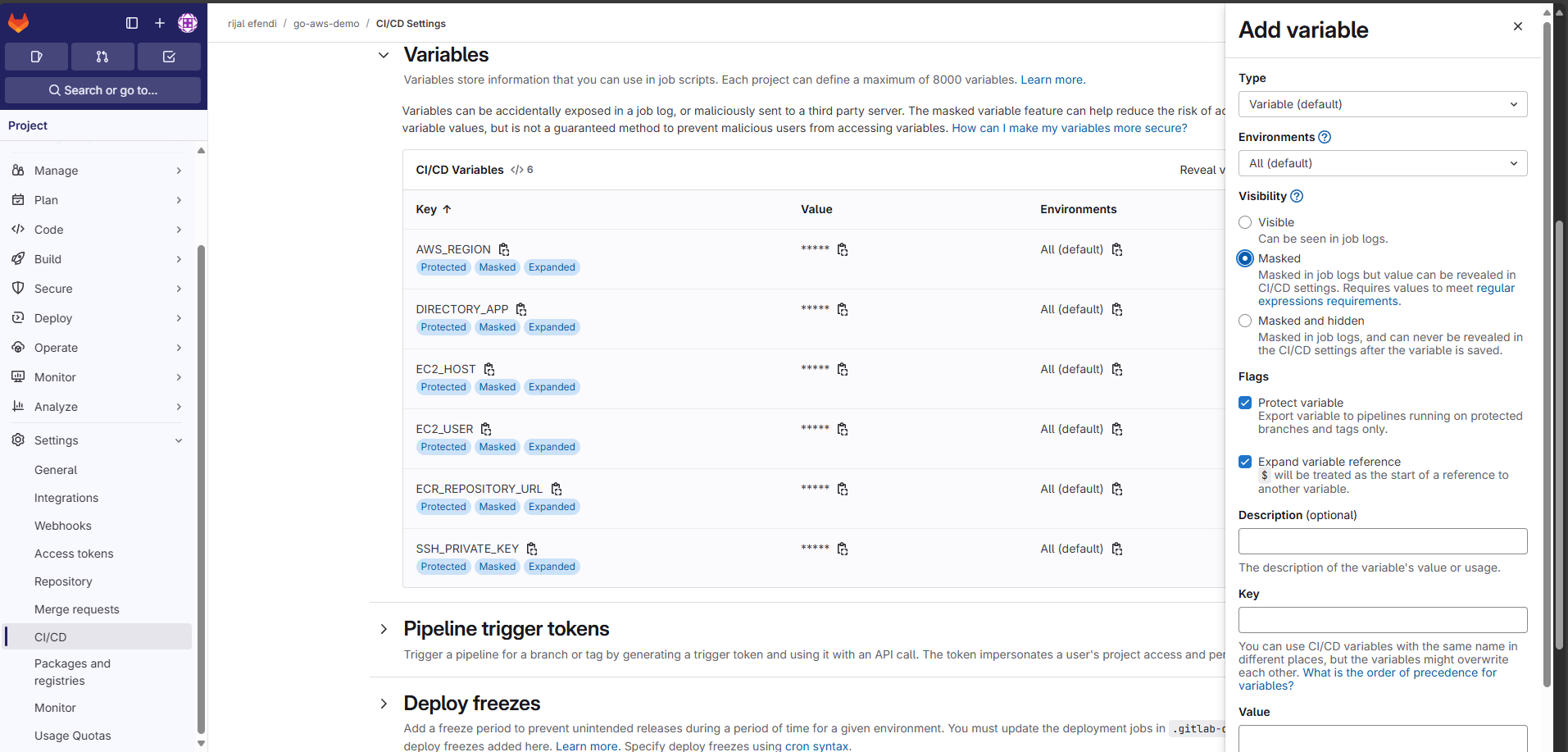
Required variables: AWS_REGION, DIRECTORY_APP, EC2_HOST, EC2_USER, ECR_REPOSITORY_URL, SSH_PRIVATE_KEY
5. 📦 Creating ECR Repository
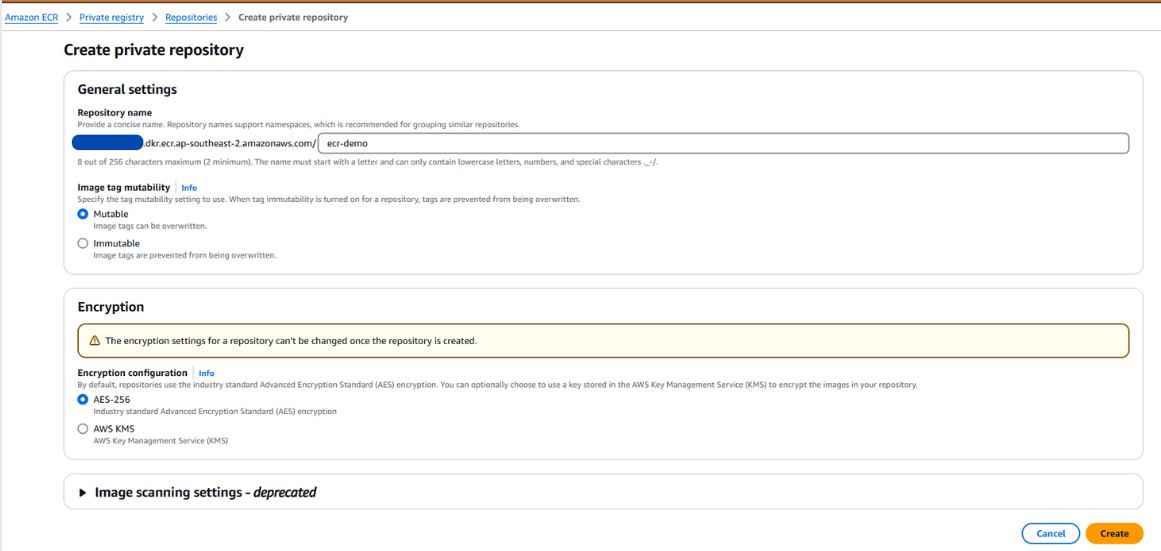
6. 🚀 Pipeline in Action
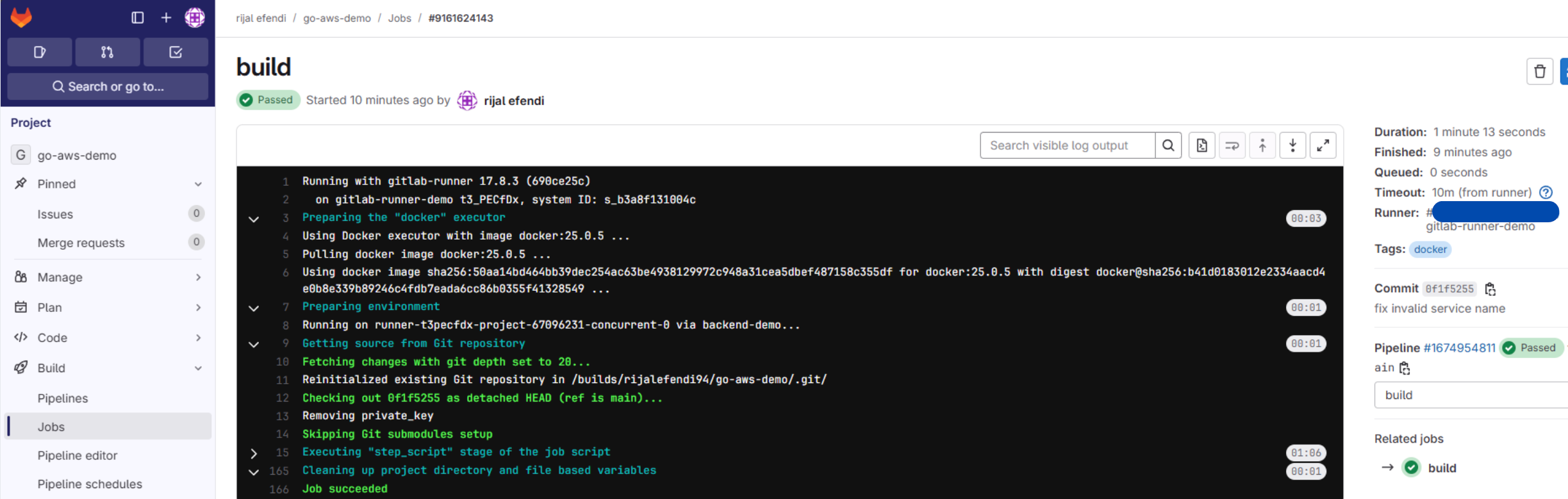
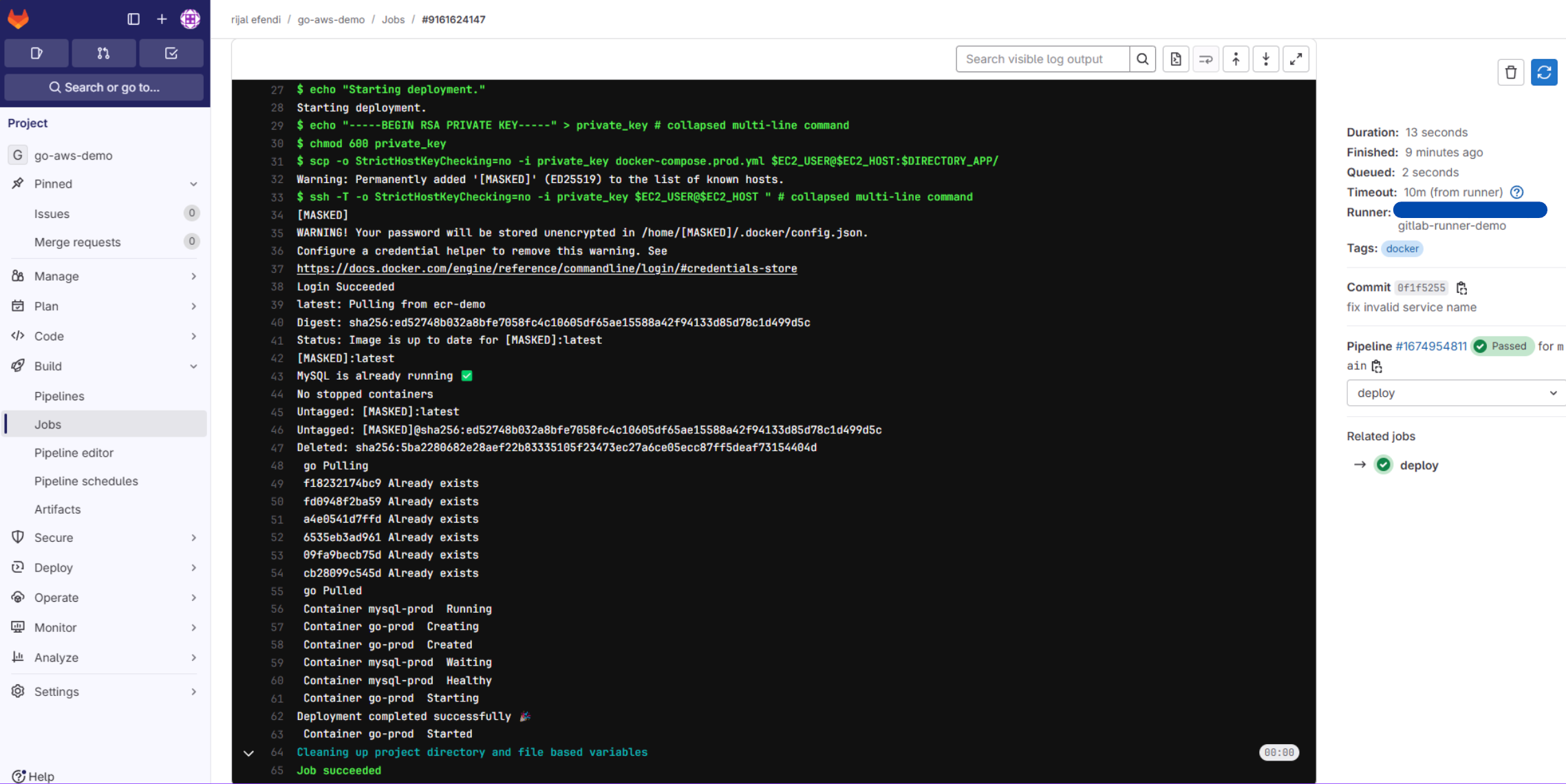
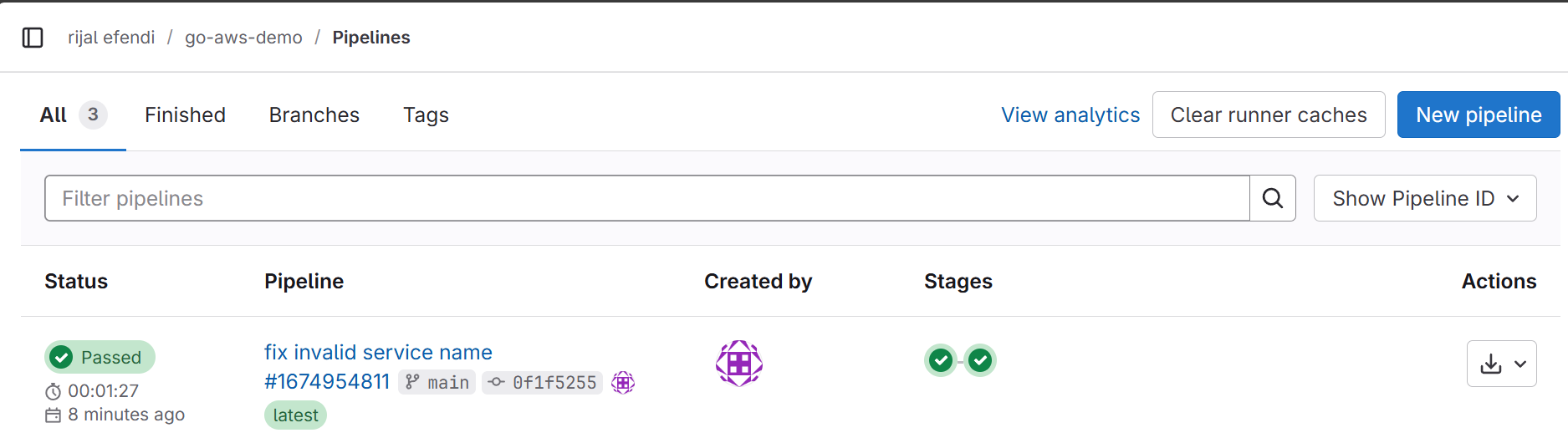
Learning Journey Highlights
IAM Configuration
- Role creation and policies for ECR access
- EC2 role attachment
- Permission management
GitLab CI/CD Setup
- Variable management
- Masking sensitive data
- Environment configuration
ECR Configuration
- Repository creation
- Access management
- Authentication setup
Resources
Next Steps: Security Improvements
- Replacing SSH keys with IAM roles and AWS Systems Manager
- Using AWS Secrets Manager or Parameter Store for sensitive credentials